Monday, November 6, 2023

10 years back signal booster using a Pepsi can to boost the signal on a Mobile dongle

 10 years back I made a signal booster using a Pepsi can to boost the signal on a Mobile dongle

#signal #booster #Mobiledongle #boost


If you’re experiencing poor Wi-Fi signal strength, you can use a soda can to improve it. Here are the steps to create a Wi-Fi booster using a soda can:

  1. Clean the can with soap and warm water to remove any sticky residue.
  2. Remove the tab from the soda can.
  3. Cut off the bottom of the can.
  4. Cut a horizontal line around the top of the can, leaving an inch or so of metal to keep everything in one piece.
  5. Cut a straight line from the bottom of the can to the top, then open the can up to create a shape similar to a satellite dish.
  6. Place the can over the antenna for your Wi-Fi connection through the hole in the base. Secure the can to your router/dongle using tape or another easily removable adhesive such as adhesive putty.

This will help focus the signal to and from your router and improve your Wi-Fi connection. If you’re looking for a cell phone signal booster, you can try lining the inside of a soda can with aluminum foil and placing your phone inside to boost the signal.

Tuesday, October 31, 2023

8K Views DIY Trimmer charger जुगाड़ HACK mi trimmer xxq01hm charging, lost cable hack #DIY Trimmer charger #DIY #HACK #jugad #trimmer charger


https://www.youtube.com/shorts/kGpIxM5F610


DIY Trimmer charger

mi products are awesome but I lost the cable that came with the trimmer so I did a HACK and now it's working


Credit https://www.mi.com/in/

Here charger used is from my phone Motorola Moto G5S Plus. Credit https://www.motorola.in/

CAUTION: KIDS DO NOT TRY THIS AT HOME OR ANYWHERE WITHOUT SUPERVISION 

NOTE: Adult supervision is required if you are below 13


#DIY Trimmer charger #DIY #HACK #jugad #trimmer charger

Wednesday, October 25, 2023

Extend internal storage of personal laptop using a Caddy Adapter. Add 2nd SSD #extend #internalstorage #laptop #2ndSSD #SSD

 Extend internal storage of personal laptop using a Caddy Adapter.

Add 2nd SSD
#extend #internalstorage #laptop #2ndSSD #SSD


Connecting Multiple TV Displays with Personal Laptop


https://www.youtube.com/watch?v=8bVeVDvUuJg

To connect multiple displays to your laptop, you can follow these steps:

  1. Check your laptop’s ports: Before you start, check the ports on your laptop and the ports on your monitors. If your laptop has multiple ports and you do not want to or are unable to use an adapter, you can connect each monitor to a different port.

  2. Connect the monitors: Connect the monitors to your laptop using the appropriate cables. If you have a VGA port on your laptop and a VGA cable, for example, you can connect the two using that cable.

  3. Configure the displays: Once you have connected the monitors, you will need to configure them in Windows. To do this, right-click on your desktop and select “Display settings.” From there, you can choose how you want your displays to be arranged and which one should be your primary display.

  4. Adjust display settings: You can also adjust other display settings such as resolution, orientation, and scaling from the same “Display settings” menu.

For more detailed instructions on how to use multiple monitors in Windows 11 or Windows 10, please refer to Microsoft’s official support page 12.


CREDIT 

https://support.microsoft.com/en-us/windows/how-to-use-multiple-monitors-in-windows-329c6962-5a4d-b481-7baa-bec9671f728a

https://www.wikihow.com/Connect-Two-Monitors-to-a-Laptop


 #120Hz #ExtendDisplay #HDMI

#MultipleDisplays #ExtendedDisplay #ExtendDisplay #HDMI #120Hz #displays #USBTypeC


Connecting Multiple TV Displays with Personal Laptop


Used 2 


BlueRigger 8K HDMI Cable (6FT, 8K 60Hz HDR, 4K 120Hz, High Speed 48Gbps with Ethernet, eARC, 3D, HDCP 2.3) - Compatible with PS5, Xbox, Roku, Apple TV, Switch, PC


https://amzn.to/498tIun


And used one


Kapa USB C Type HUB 4 in 1 Adapter, Aluminium Multi Port Dongle Type-C to USB Ports, 4K HDMI Port, PD Charging Port for MacBook Pro/Air, Lenovo, Dell, Samsung Dex Other Type C Phones & Devices


#MultipleDisplays #ExtendedDisplay #ExtendDisplay 

https://amzn.to/3MfiR8d

Saturday, March 27, 2021

Cleaning Vents of my laptop / मेरे लैपटॉप की सफाई वेंट


Cleaning Vent of my laptop, as part of maintenance you should always clean vents of the laptop because of the heat sink, vents get accumulated with carbon on it which becomes black and block the vents which make the laptop even get more heated 


मेरे लैपटॉप के वेंट की सफाई, रखरखाव के हिस्से के रूप में आपको हमेशा लैपटॉप के वेंट्स को साफ करना चाहिए क्योंकि हीट सिंक की वजह से वेंट कार्बन के साथ जमा हो जाते हैं जो काला हो जाता है और वेंट को ब्लॉक कर देता है जिससे लैपटॉप और भी गर्म हो जाता है


yadi aapake paas ek ya do saal ke lie aapaka laipatop hai, to yah dhool se bhara ho sakata hai. dhool pankhe, vent aur heet sink ko band kar detee hai, jisase aapaka peesee theek se thanda nahin ho paata hai. aap is dhool kee ek achchhee maatra ko hata sakate hain, bhale hee aap apana laipatop na khol saken.

dhool jama hone se peesee ko theek se thanda hone se roka ja sakata hai, aur yah garmee haardaveyar ko nukasaan bhee pahuncha sakatee hai. aapake laipatop ke pankhe bhee pooree tarah se chal sakate hain, jisase aapakee baitaree khatm ho sakatee hai. aapaka laipatop kool rahane ke lie isake pradarshan ko kam bhee kar sakata hai.

agar aap apana laipatop khol sakate hain

dast-oph kampresd gais dastar - 4 paik
adhikaansh laipatop, vishesh roop se nae vaale, apane upayogakartaon dvaara khole jaane ke lie dizain nahin kie gae hain. yah ek gambheer samasya prastut karata hai. ek deskatop peesee par, aap apane peesee ko band kar denge, kes kholenge, ise sampeedit hava kee kain se uda denge, aur kes ko band kar denge. aap isee tarah se ek laipatop ko dhool chata sakate hain - agar keval ise kholane aur andar jaane ka koee tareeka ho.

aapake laipatop mein ek nichala painal (ya kaee nichale painal) ho sakate hain jinhen aap intarnal ekses karane ke lie khol sakate hain. apane laipatop ke mainual kee jaanch karen, ya laipatop ke apane vishisht modal ke lie onalain ek vishesh "sarvis mainual" dekhen. laipatop ko paavar daun karen, baitaree nikaalen, aur laipatop ke andaroonee hisse tak pahunchane ke lie painal ko hata den. yadi aapake laipatop ke lie ek seva niyamaavalee upalabdh hai, to yah aapako prakriya ke baare mein bataegee. aapake laipatop ke aadhaar par, painal kholane se aapakee vaarantee radd ho bhee sakatee hai aur nahin bhee.


Connecting Jio Router to TP link Router / जियो राउटर को टीपी लिंक राउटर से जोड़ना


Image credit: https://www.tp-link.com/   &   https://www.jio.com/fiber.html

Hi, this is Amaan and I am writing this post just in thought of sharing my experience with wifi range so I made some research and found we can extend the wifi range by simply using another old router or if having a new 5GHz band router that will work amazingly awesome.

So why it is required, have you ever faced a speed issue while sitting in another room far away from your wifi router range and struggling to get the speed and that is coming where we can extend the range by using another router.

Just like in the above picture what I have used is the Jio Fiber router and TP-Link dual-band router, although both are dual-band so it's awesome.


So how we are going to do that.
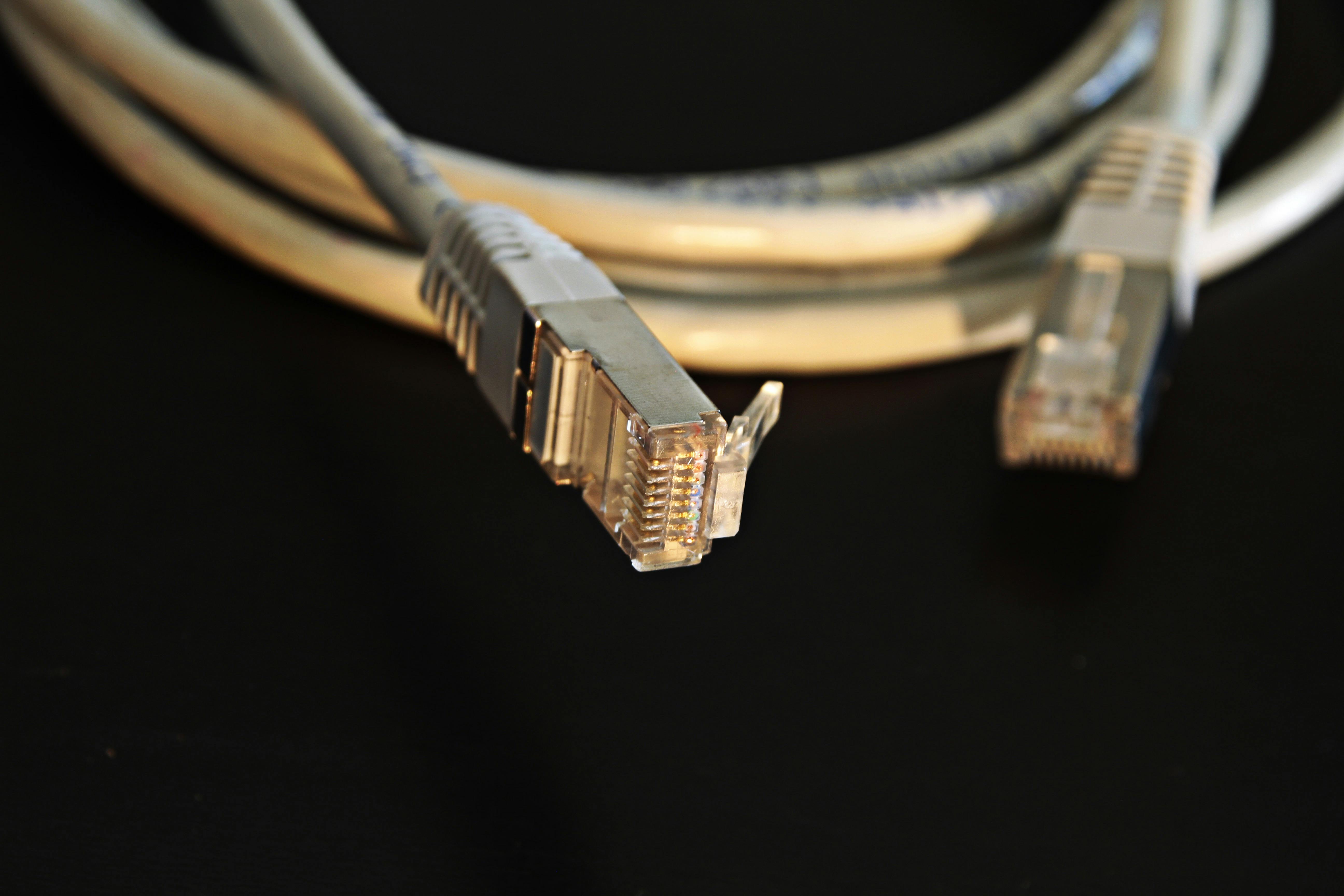
Simply connect Lan cable in one of the Lan ports in Jio Fiber Router and then connect the other part of Lan cable to WAN port of TP-Link Router and set the router settings to Dynamic setting on TP-link 


नमस्ते, मेरा नाम अमान है और मैं यह पोस्ट सिर्फ वाईफाई रेंज के साथ अपने अनुभव को साझा करने के विचार में लिख रहा हूं, इसलिए मैंने कुछ शोध किया और पाया कि हम केवल एक और पुराने राउटर का उपयोग करके या एक नया 5GHz बैंड राउटर होने पर वाईफाई रेंज का विस्तार कर सकते हैं। अद्भुत काम करेगा।

तो इसकी आवश्यकता क्यों है, क्या आपने कभी अपने वाईफाई राउटर रेंज से दूर दूसरे कमरे में बैठकर गति प्राप्त करने के लिए संघर्ष करते हुए गति की समस्या का सामना किया है और वह आ रहा है जहां हम दूसरे राउटर का उपयोग करके सीमा का विस्तार कर सकते हैं।

जैसा कि ऊपर की तस्वीर में मैंने जो इस्तेमाल किया है वह है जियो फाइबर राउटर और टीपी-लिंक डुअल-बैंड राउटर, हालांकि दोनों डुअल-बैंड हैं इसलिए यह कमाल है।

तो हम यह कैसे करने जा रहे हैं।
बस जियो फाइबर राउटर में लैन पोर्ट में से एक में लैन केबल कनेक्ट करें और फिर लैन केबल के दूसरे हिस्से को टीपी-लिंक राउटर के वैन पोर्ट से कनेक्ट करें और राउटर सेटिंग्स को टीपी-लिंक पर डायनेमिक सेटिंग पर सेट करें।


namaste, mera naam amaan hai aur main yah post sirph vaeephaee renj ke saath apane anubhav ko saajha karane ke vichaar mein likh raha hoon, isalie mainne kuchh shodh kiya aur paaya ki ham keval ek aur puraane rautar ka upayog karake ya ek naya 5ghz baind rautar hone par vaeephaee renj ka vistaar kar sakate hain. adbhut kaam karega.

to isakee aavashyakata kyon hai, kya aapane kabhee apane vaeephaee rautar renj se door doosare kamare mein baithakar gati praapt karane ke lie sangharsh karate hue gati kee samasya ka saamana kiya hai aur vah aa raha hai jahaan ham doosare rautar ka upayog karake seema ka vistaar kar sakate hain.

jaisa ki oopar kee tasveer mein mainne jo istemaal kiya hai vah hai jiyo phaibar rautar aur teepee-link dual-baind rautar, haalaanki donon dual-baind hain isalie yah kamaal hai.

to ham yah kaise karane ja rahe hain.
bas jiyo phaibar rautar mein lain port mein se ek mein lain kebal kanekt karen aur phir lain kebal ke doosare hisse ko teepee-link rautar ke vain port se kanekt karen aur rautar setings ko teepee-link par daayanemik seting par set karen.

10 years back signal booster using a Pepsi can to boost the signal on a Mobile dongle

 10 years back I made a signal booster using a Pepsi can to boost the signal on a Mobile dongle #signal #booster #Mobiledongle #boost If you...